
How to Create a QR Code in Seconds (Step-by-Step Guide)
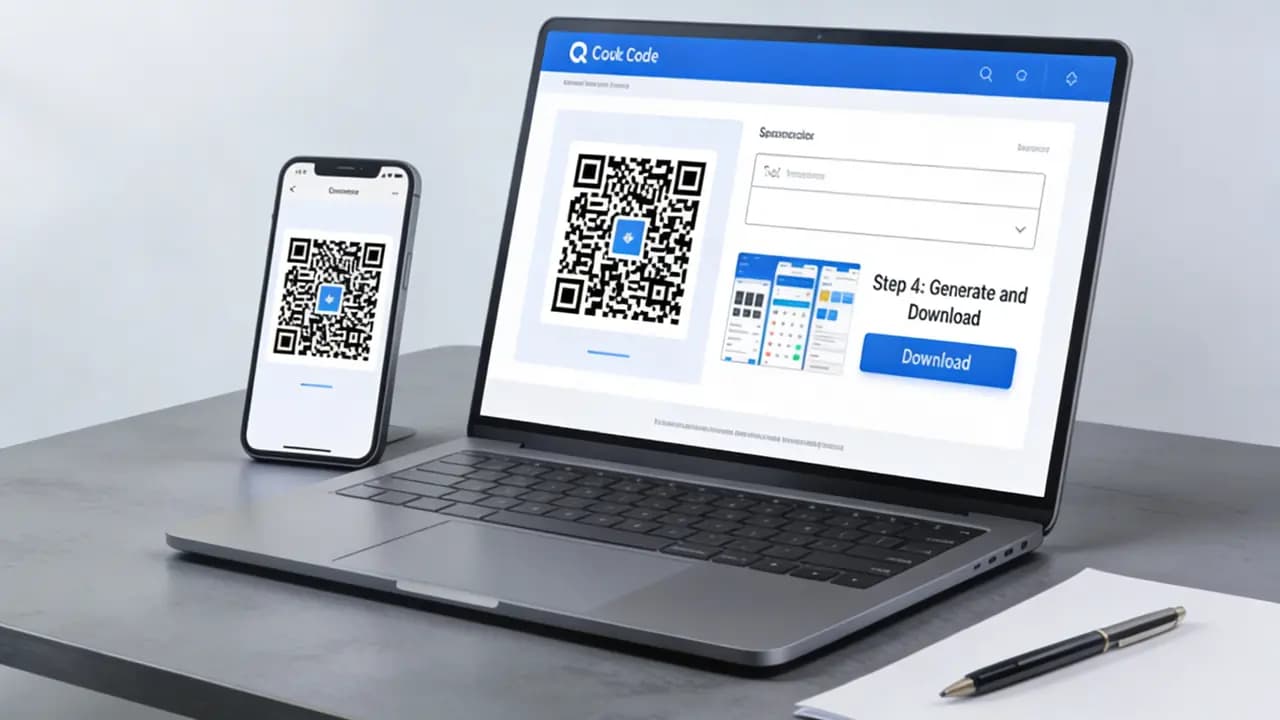
QR codes fast-forward users' journey to access digital content - from websites and menus to payment forms and contact information. You can make one in under a minute - no account needed, no design skills required. This guide walks you through creating a QR code quickly and correctly and gives you some tips to ensure that it works in real-world use.
Prepare Your Content Before Generating a QR Code
Before you create a QR code, make sure the content you want people to access is ready to go. A QR code is simply a shortcut - it can only send users somewhere that already exists. Whether that's a website, landing page, PDF, contact card, Wi-Fi network, payment page, social media profile, email address, phone number, or even a simple text message, it's worth taking a few minutes to verify everything beforehand.
One of the most common mistakes is rushing to generate a QR code before checking the destination. Imagine printing hundreds of flyers, product labels, or event posters only to discover the link contains a typo or points to the wrong page. That's the kind of mistake that tends to become obvious right after everything has already been printed.
Before generating your code, test the URL, download the file yourself, verify your contact details, and make sure any payment or registration pages are working correctly. If you're using a static QR code, this step is especially important because updating the content later may require creating and redistributing an entirely new code.
A good rule of thumb: if you wouldn't confidently send the link directly to a customer, don't turn it into a QR code yet. A few extra seconds of checking now can save a lot of confusion - and potentially a lot of reprinting costs - later.
How to Create a QR Code Step by Step
Step 1: Select a QR code generator
Begin with a reliable QR code generator. Most tools run in the browser and do not require installation.
Look for features like:
- Instant generation.
- A variety of content (URL, text, Wi-Fi, etc.).
- Download options (PNG, SVG).
- Optional customization.
Step 2: Add the Information You Want to Share
Once you've selected the type of QR code you want to create, it's time to enter the content that people will access when they scan it. This could be a website, contact information, Wi-Fi credentials, a file download, or any other supported content type. Take a moment to review everything carefully before generating the code, especially if you're creating a static QR code. A small typo might not seem like a big deal now, but it can turn into a much bigger problem after you've printed the code on hundreds of flyers, brochures, or product packages.
For example, if you're creating a QR code for a website, be sure to paste the complete URL, including the "https://" portion. If you're sharing Wi-Fi access, double-check both the network name and password. And if you're creating a digital contact card, make sure details like the person's name, phone number, and email address are accurate and up to date.
This step is proofreading before hitting "publish": thirty seconds of checking now beats discovering later that your QR code has been sending people to the wrong place all along.
Step 3: Generate the QR Code
Click the "Generate" button. The same tool will automatically convert your data into an image of a QR code. That usually happens in less than a second.
Step 4: Customize (Optional but Recommended)
Many generators offer rudimentary customization:
- Change the color (ensure strong contrast).
- Add a logo in the center.
- Adjust shape or style.
Don't overdo it - too much styling can reduce scan reliability.
Step 5: Download Your QR Code
Once your QR code is ready, download it in the format that best suits how you'll be using it. If the code will mainly appear on websites, social media, emails, or digital documents, PNG is usually the best option because it's widely supported and easy to use. If you're planning to print the QR code on posters, packaging, business cards, banners, or other physical materials, SVG is often the better choice since it can be resized without losing quality or becoming blurry.
After downloading, save the file somewhere easy to find later. It might seem obvious now, but future you will appreciate not having to search through fifteen folders named "Final," "Final_v2," and "Actually_Final." Keeping your QR codes organized from the start makes updates, reprints, and future campaigns much easier to manage.
Static vs. Dynamic QR Codes: Which One Should You Choose?
Before creating your QR code, it's worth deciding whether a static or dynamic version makes more sense for your needs. Making the right choice upfront can save you a lot of frustration later.
A static QR code is permanent. The information is embedded directly into the code, which means it can't be edited after creation. This makes static codes ideal for simple, long-term uses such as contact information, Wi-Fi credentials, fixed webpages, or instructions that aren't likely to change.
A dynamic QR code, on the other hand, gives you much more flexibility. The destination can be updated at any time, even after the code has been printed or shared. Dynamic codes also provide useful analytics, allowing you to track scans, locations, devices, and overall engagement. That's why they're often the preferred choice for marketing campaigns, event promotions, product packaging, and other business applications where measuring performance matters.
A simple rule to remember: if the content will stay exactly the same forever, a static QR code will do the job. But if there's even a small chance you'll want to update the link, change the destination, or see how people are interacting with the code, choosing a dynamic QR code from the start is usually the smarter move. (If you're still not sure which fits, this comparison of static vs dynamic codes walks through every use case.) It's much easier to update a destination with a few clicks than to explain why 5,000 printed flyers are suddenly pointing to the wrong page.
Common QR Code Mistakes That Can Hurt Performance
QR codes may be simple to create, but a few small mistakes can make them frustrating - or even impossible - to scan. One of the most common issues is using low-contrast colors, such as light gray on a white background, which can make it difficult for smartphone cameras to detect the code properly. Making the QR code too small is another frequent problem, especially when it's placed on posters, packaging, or signs that people need to scan from a distance.
Other mistakes include linking the code to slow-loading, outdated, or broken pages, over-customizing the design until the code becomes difficult to read, and skipping the testing phase altogether. A QR code that looks great in a design mockup isn't much use if real people can't scan it when they need to. If you want to get the design right from the start, see our best practices for designing high-scanning QR codes - and if a code already refuses to scan, here's how to diagnose and fix it.
Pro Tips for Better Results
If you want more scans and a better user experience, focus on clarity and convenience. Give people a reason to scan by including a clear call to action such as "Scan for 20% Off," "Unlock Exclusive Content," or "Get Your Free Guide." Make sure there's enough white space around the QR code so scanners can easily identify its boundaries, and always use high-resolution files when printing.
Placement matters too. A QR code positioned at eye level or in an easy-to-reach location will almost always perform better than one tucked away in a corner where people have to crouch, stretch, or perform an impromptu yoga pose just to scan it.
Where Can You Use a QR Code?
One of the biggest advantages of QR codes is their versatility. Once created, they can be used almost anywhere people interact with your brand, product, or business. You'll commonly find QR codes on websites, landing pages, posters, flyers, brochures, business cards, product packaging, restaurant tables, menus, event tickets, promotional materials, and storefront displays.
Whatever the goal - driving website traffic, collecting leads, sharing contact information, promoting an event - the code ties a physical surface to digital content. The key isn't just placing it somewhere visible; it's giving people a compelling reason to scan it in the first place.
Ready to try it yourself? You can create your own QR code for free in under a minute - no account needed.