
How to Customize a QR Code Without Breaking the Scan
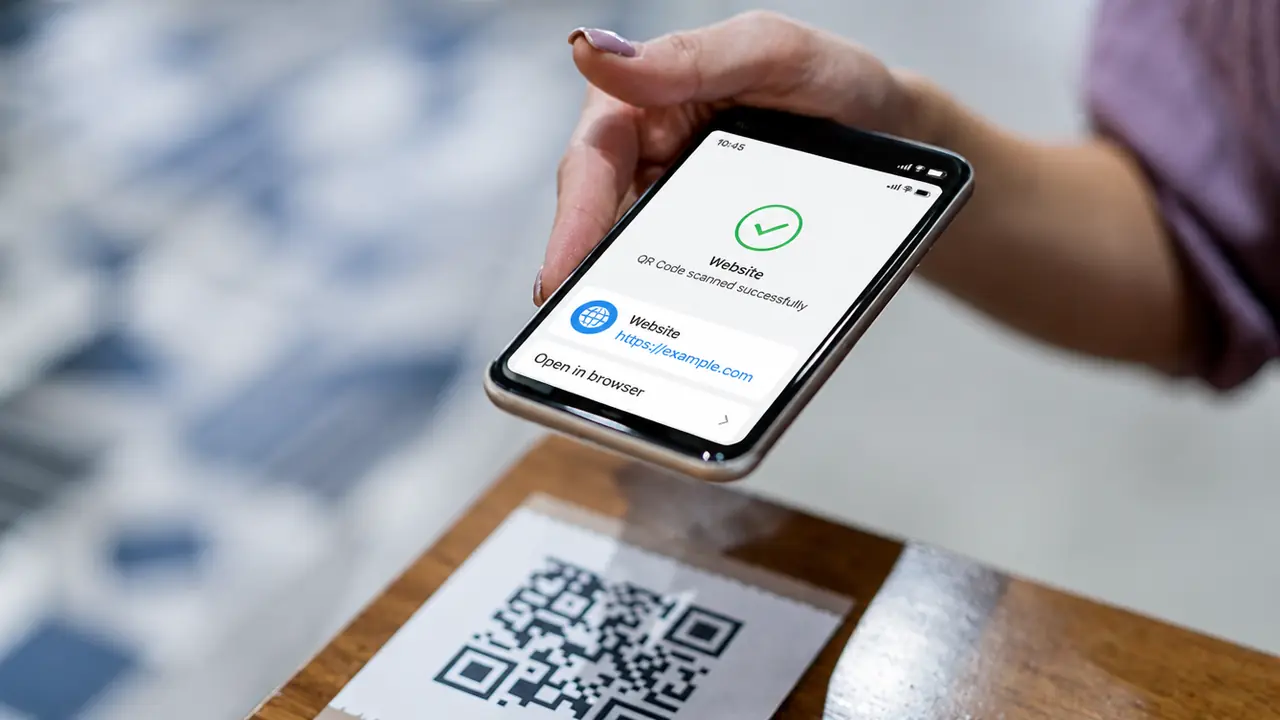
A plain black-and-white QR code works perfectly fine.
It is just not always pretty. It looks practical, technical, and slightly like a tiny robot carpet. That is why many businesses want to customize QR codes with brand colors, logos, frames, icons, and creative calls to action.
Good idea - as long as the code still scans.
A customized QR code should look branded, but its first job is function. A gorgeous code that customers cannot scan is a failed design, whatever the mockup looked like.
Here is how to customize a QR code without making it unscannable. (See also how to design high-scanning QR codes.) Every rule below can be tried live in the free custom QR code generator - it checks scannability as you edit.
Why Customize a QR Code?
Customization helps a QR code feel like part of the brand experience instead of a random square pasted onto a design.
A branded QR code can:
- Look more professional
- Build trust
- Match packaging or campaign visuals
- Improve scan interest
- Support brand recognition
- Make printed materials feel cleaner
- Add context with a frame or call to action
A brand like Starbucks could use a branded QR code on a seasonal poster. Nike could place one on an in-store display. Sephora could use QR codes on shelf cards for tutorials or product reviews.
A local bakery can do the same with a simple frame that says:
"Scan for tomorrow's specials."
No global campaign team required. Just good design and working pixels.
Rule 1: Keep Strong Contrast
Contrast is the most important design rule.
A QR scanner needs to clearly separate the foreground from the background. Black on white is the safest option, but other combinations can work if the contrast is strong.
Good choices:
- Dark blue on white
- Dark green on light cream
- Black on pale yellow
- Deep purple on white
- Dark brown on beige
Risky choices:
- Light gray on white
- Yellow on white
- Pink on red
- Pale blue on light gray
- Gradient colors with weak contrast
A QR code should not make the camera guess.
If the design looks soft, subtle, and elegant but refuses to scan, congratulations: you made a decorative square. (More on why QR codes fail to scan.)
Rule 2: Do Not Invert Colors Carelessly
Most QR codes use dark modules on a light background.
Some scanners can read inverted codes, such as white modules on a black background, but not all scanning situations are friendly. Lighting, print material, reflections, and camera quality can make inverted codes harder to scan.
For maximum reliability, keep the QR code dark on a light background.
If you use an inverted design, test it heavily.
And then test it again.
The QR code does not care that the black background looks premium. It cares whether the phone can read it.
Rule 3: Protect the Quiet Zone
A QR code needs clean space around it to be read properly. This empty margin is called the quiet zone, and it helps the scanner recognize where the code starts, where it ends, and what should be ignored.
When that space is crowded, scanning becomes harder. Nearby text, borders, images, logos, or decorative patterns can confuse the camera and make the code less reliable.
Keep the area around the QR code clear. Do not let design elements press against it, cover its edges, or blend into its background. Avoid tight frames, cropped corners, busy visuals, and logos that spill into the margin.
The quiet zone may look like "unused" space, but scanners rely on it to find where the code starts and ends. Even a tiny square performs better when nothing on the page presses up against it.
Rule 4: Be Careful With Logos
Adding a logo in the center of a QR code can look professional, but it also covers part of the code.
Small logos are usually safer. Large logos can damage scannability.
Best practices:
- Use a high-error-correction QR code.
- Keep the logo centered.
- Do not cover the three large corner markers. (Those corners are the finder patterns the scanner relies on.)
- Keep the logo simple.
- Add a small white background behind the logo.
- Test the code after adding it.
A logo can increase trust because users recognize the brand. For example, a McDonald's QR code with a small logo on a receipt may feel official. A Dyson QR code on packaging can look more trustworthy with clean branding.
But the logo should not become the main character.
The scan is the main character.
Rule 5: Keep the QR Code Shape Intact
A QR code may look like a design element, but it is still a technical pattern. Its grid has to stay clean, square, and predictable so scanners can read it correctly.
That means the code should not be stretched, compressed, twisted, tilted for style, wrapped around corners, or forced onto awkward surfaces. Avoid placing it across folds, printing it over curved packaging edges, adding heavy textures, or applying 3D effects that change the shape of the modules.
Design can make a QR code look more polished, but it should never interfere with the structure.
A stylish QR code is fine. A QR code doing gymnastics is not.
Once the grid starts looking warped or overly decorative, the scanner may stop trying - and customers will stop scanning.
The Scan Comes First
Custom QR codes can make campaigns, packaging, menus, posters, and business materials look more professional and more trustworthy - as long as every styling decision keeps the code readable.
Use strong contrast, protect the quiet zone, keep logos small, avoid distortion, choose the right size, and test the final version in real conditions. Add a clear CTA so users know why they should scan.
A QR code can be branded. It can be stylish. It can match your campaign perfectly. But if it does not scan, it is just a tiny piece of modern art. And modern art is not a conversion strategy.
Ready to brand yours? Create a free QR code, add your colors and logo, and test before you print.